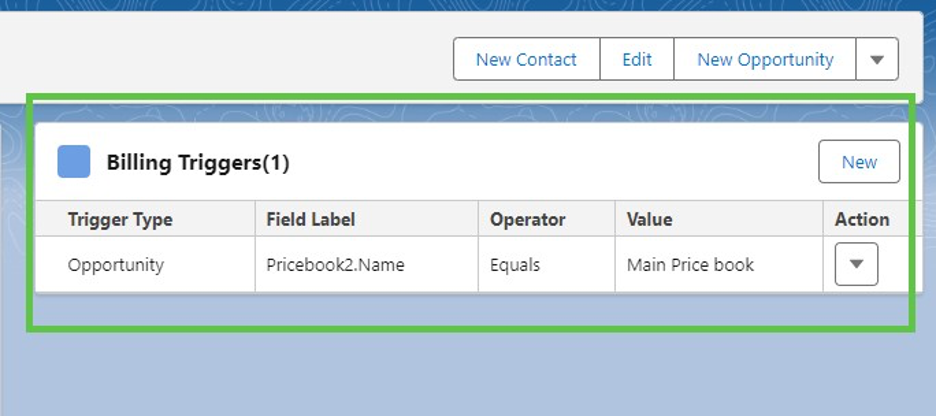
Adding a trigger to your Invoice Billing records lets you organize and arrange billings based on a variety of criteria.
Important: You will not be able to create and send an invoice if you do not add any triggers to the invoice billing.
How to add a trigger to your invoice billing:
1. Go to the Invoice Billings menu item.

2. Choose the billing to which you wish to add the trigger(s).
3. Click the “New” button in the triggers section.
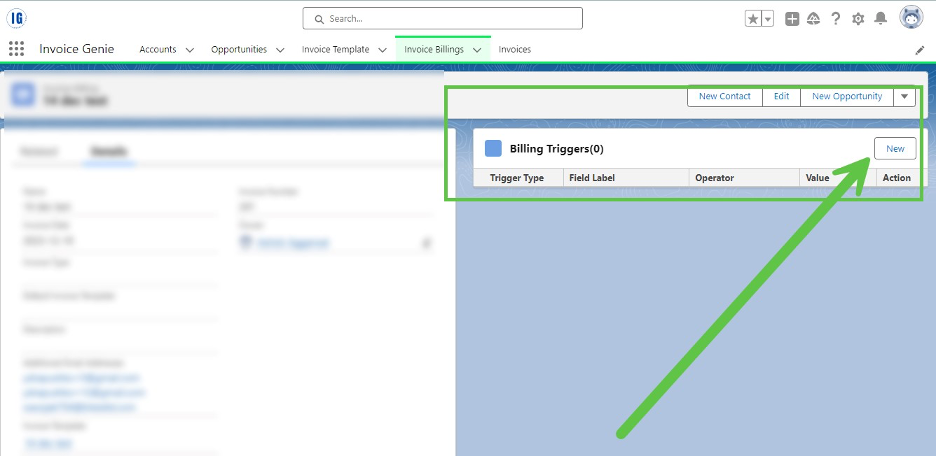
4. The “New Billing Trigger” window opens.
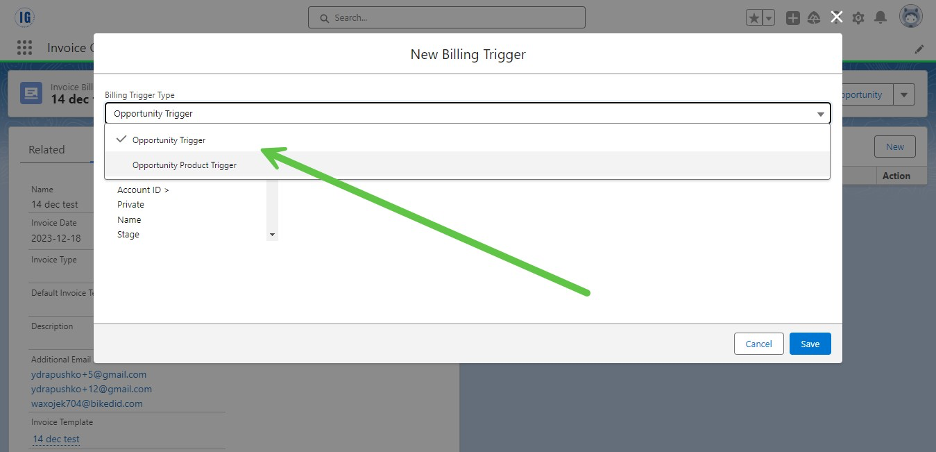
5. Select the appropriate option from the “Billing Trigger Type” dropdown: “Opportunity Trigger” or “Opportunity Product Trigger.”
6. From the list of triggers that appears, select the desired trigger and click “Add” button.
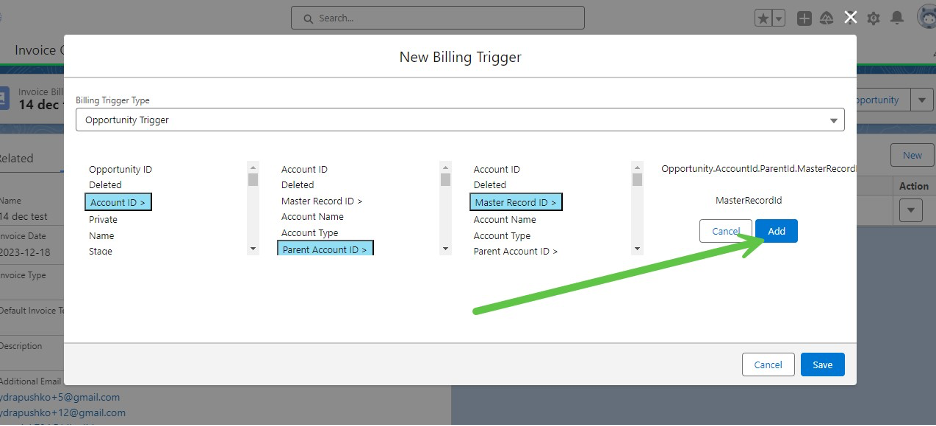
Following that, the option to add a trigger will appear, and must be filled in with the necessary criteria:
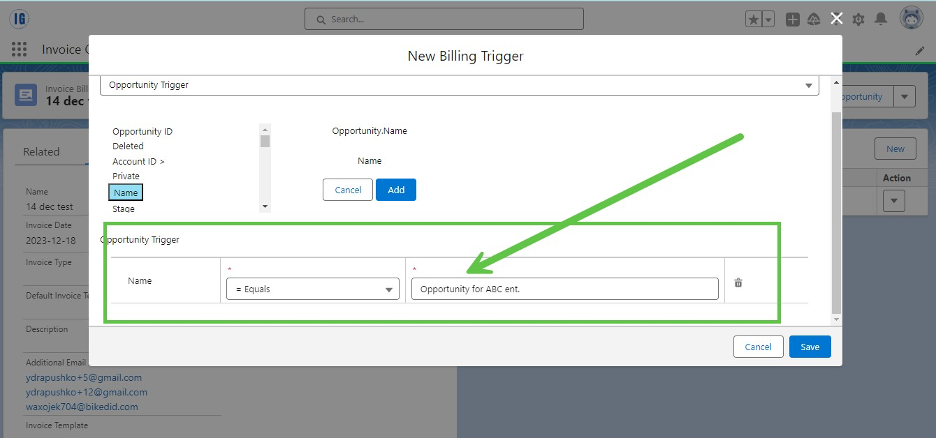
Hit the “Save” button.
7. You should now be able to see the new records added to Billing Triggers related list.