• Home
  • Inline Documentation
  • Private Doc
  • Search
  • Home
  • Inline Documentation
  • Private Doc
  • Search
  • Introduction
  • Log In
  • How to create an Account
  • How to create a Product
  • How to create a Price Book
  • How to create an Opportunity
  • How to add Products to an Opportunity
  • What is the purpose of Invoice Template Object
  • What is the purpose of Invoice Billing Object
  • How to add a trigger to Invoice Billing records
  • How to send Invoices

How to create a Price Book

15 views 0

Written by admin
March 29, 2024

1. Click the 9 dots in the upper-left corner.
2. Set the cursor in the search field and type “Price Book,” then choose the “Price Book” item in the results.
3. The additional tab “Price Book” will appear in the menu tabs.
4. Click on the “New” button in the Price Book list page, which is located in the top right corner.
5. Fill in the fields with data and select the “Active” box.
6. Click on “Save”
7. Select a new Price Book from the list and open the “Related” tab on the left.
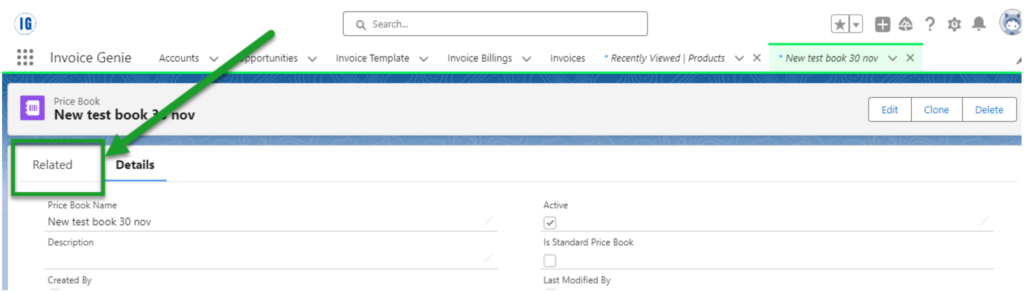
8. Click the “Add Products” button on the right to add the product to the Price Book if necessary.

Was this helpful?

Yes  No
Related Articles
  • How to send Invoices
  • How to add a trigger to Invoice Billing records
  • What is the purpose of Invoice Billing Object
  • What is the purpose of Invoice Template Object
  • How to add Products to an Opportunity
  • How to create an Opportunity

No luck finding what you need? Contact Us

Leave A Comment Cancel reply

Previously
How to create a Product
Up Next
How to create an Opportunity
Copyright 2022 SmartWpThemes.com. All Rights Reserved